http://www.buyetail.com
Monday, May 30, 2016
Friday, May 27, 2016
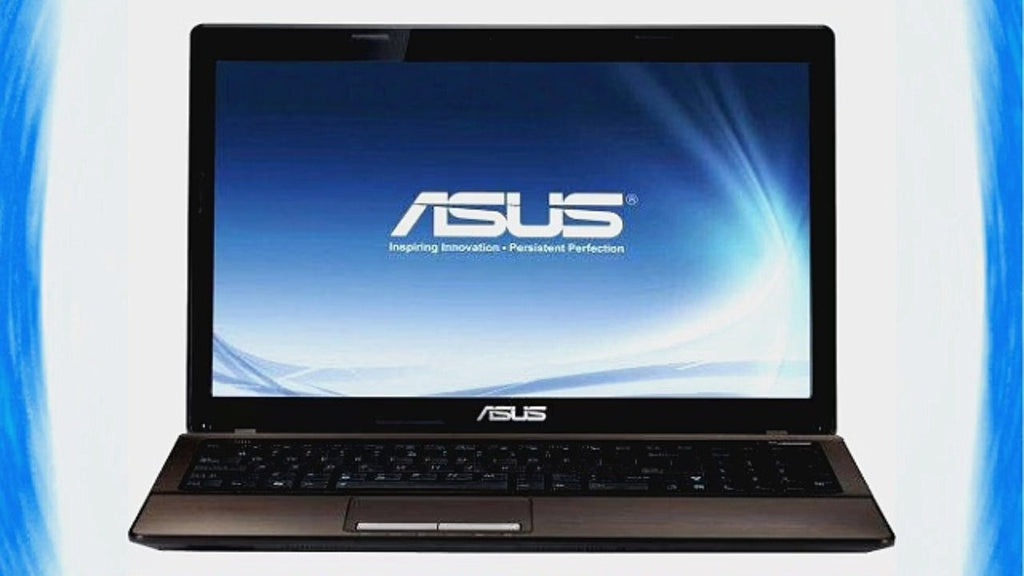
Great Deal on a Asus X53E-RS52 15.6" Laptop Computer - from buyEtail

ASUS Power4Gear optimizes system performance for increased
performance and longer mobility.
ASUS Palm-Proof Technology intelligently distinguishes between palm and finger contact to prevent inadvertent cursor movements during typing.
Powered by 2.5GHz 2nd generation Intel Core i5-2450M
processor
Intel Turbo Boost 2.0 automatically speeds up processor when
you need more speed
15.6" HD display with 1366 x 768 resolution for a
crystal-clear view
750GB, 5400rpm hard drive stores all your important files
6GB DDR3 memory is expandable to 8GB for even faster
performance
$699.99
http://www.buyetail.com
Wednesday, May 25, 2016
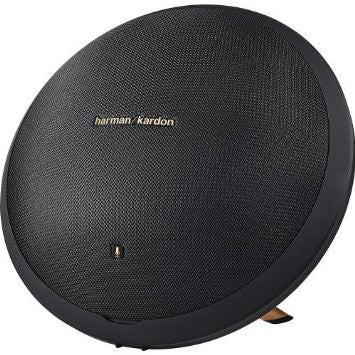
Great Deal on a Harman Kardon Onyx Studio 2 Wireless Speaker System with Rechargeable Battery and Built-in Microphone - from buyEtail

The Harman Kardon Onyx Studio 2 provides best-in-class audio
that is delivered in an iconic design that is destined to become the
centerpiece of any room. With the convenience of wireless Bluetooth
connectivity and a rechargeable Li-ion battery, you and your music can cut
cords and enjoy up to 5-hour playtime anytime, anywhere. Harman Kardon Onyx
Studio 2 comes with new features such as a built-in speakerphone with Harman
VoiceLogic echo and noise cancellation as well as an auxiliary input. Crafted
with premium materials, Onyx Studio2 has been engineered to enhance your
demanding lifestyle with the sophisticated, audio excellence expected from Harman
Kardon.
Know What's In The Box
1 x HK Onyx Studio 2
1 x Power adapter
http://www.buyetail.com
Monday, May 23, 2016
Refurbished Apple iPhone and iPads - Great iPad App - from buyEtail
TweetBot
It may not support social networks such as Facebook or
location-based services such as Foursquare, but TweetDeck for iPad is a
respectable Twitter reader with an intuitive interface and accurate
geo-tagging.
Citrix GoToMy PC
GoToMyPC for iPad makes it simple to control your computer
while away from your work area, but the lack of multitasking support, and
latency issues, may dampen the experience.
source: http://www.pcmag.com/article2/0,2817,2362573,00.asp
by Jeffrey Wilson
http://www.buyetail.com
Friday, May 20, 2016
Refurbished Apple iPhone and iPads - Transfer Data from Old iPad to New iPad (iPad Pro, iPad Mini 4) - from buyEtail
Finally, you bought yourself a brand new iPad Pro,
but now what might rack your brain is, how to transfer your favorite songs,
apps, movies, ebooks and lots of other useful data from old iPad to your brand
new iPad. Here we will walk you through the process and achieve the simple iPad
to iPad transfer with tutorials.
In the following iPad to iPad transfer tutorials, we will
show you how to transfer data from old iPad to your brand new iPad with iCloud
and iTunes. And we will introduce non-Apple way as well, with Syncios iPad
Transfer. Off course, each way has its pluses and its minuses, which we will
also walk you through.
Key Features of iPad to PC Transfer
The original way is to open your iTunes. By doing so, you
can transfer iPad data to your new iPad via local hard drive of your PC. But we
all know that iTunes is too heavy and clumsy. It often takes up much of the CPU
usage and slow down everything in PC. And data transfer speed is rather slow.
The backup file just contains parts of the iPad data, not all of them. There is
also an erasing function during synchronization. People will often get their
data erased when they forget to disable this function.
1. Connect old iPad to PC — Launch iTunes (To
prevent erasing data from iPad, click to "Edit > Preferences >
Devices" and check the option "Prevent iPod, iPhone, iPad from
syncing automatically") and connect the old iPad to the computer.
2. Backup old iPad — Click the name of your iPhone
from the iTunes menu on the top right. Then choose “Back Up”. Let the iPad
backup finish within iTunes, keep iTunes open but disconnect the old iPad from
the computer.
3. Restore new iPad from iTunes — Turn the new
iPad on. At the “Set Up iPad” screen choose “Restore from iTunes Backup” then
tap “Next”.
4. Connect new iPad — Connect the iPad to the
computer and within iTunes choose the most recent backup from the restore menu.
5. Transfer data to new iPad via iTunes — Click
“Continue” and let the restore via iTunes take place, do not disconnect the
iPad until the transfer is completed and the iPad has rebooted.
Note: The backup doesn’t contain your music, your movies.
The restore will put back, what is part of the backup. Other things will need
to sync to restore to the new iPad.
With iCloud, you can store your files, music, apps, etc. on
one iPad and retrieve it on another without PC. iCloud is a way far better than
iTunes for its all-dimensions data backup, anytime, anywhere. You can do your
iPad to iPad transfer at high speed with fast connection. But it's not without
flaws.
(1)Both of your iPad need to be with iOS 5 or later;
(2)Service is unavailable without Wifi;
(3)You have only 5 GB space and need to pay for the exceeded
part. If you download music or files from other sources, you will also need to
pay for storage;
(4)Very slow for apps transferring;
(5)There is file security and private risk under remote
environment.
1. Set up iCloud — Have iCloud set up on both of
your iPad.
2. Find backup setting — Launch “Settings” and tap
on iCloud on old iPad, then tap on “Storage & Backup”.
3. Initiate iCloud backup — Tap on “Back Up Now”
to initiate a manual iCloud back up. Wait till the backup finished.
4. Restore from iCloud Backup — At the “Set Up
iPad” screen on your new iPad, choose “Restore from iCloud Backup” and tap
“Next”.
5. Retrieve data from new iPad — Login to your
iCloud account and choose the most recent backup from the old iPad you just
made. Tap on “Restore” to transfer the data from the old iPad backup to the new
iPad.
If you are tired of Apple ways of transferring and want a
faster iPad to iPad transfer via your own PC, then Syncios iPad Transfer can be
a good alternative. Unlike iTunes, Syncios iPad Transfer is a lite software
that specially designed for iPad data transfer. You can have your app, music,photos,
movie, ebook, iTunesU, voice memo, contacts and other iPad data perfectly
transferred without Wifi. It fully supports all iOS and all iPad models then
you don't need to upgrade your old iPad iOS. The only drawback is that the Mac
version is currently unavailable. You need to run it on Windows PC.
1. Install Syncios iPad Transfer — Download and
install Syncios iPad Transfer on your computer.
2. Connect old iPad to PC — Plug your old iPad
into your PC with USB cable, then start up Syncios iPad Transfer.
3. Transfer old iPad Files to PC — Choose either
file type like Media, Photos, Apps or else under iPad. Press "Shift"
and select all files listed on the panel, then click "Export" and
choose backup location in your PC. Click "OK" to backup files from
old iPad to your own PC. Wait till the needed backup completed then disconnect
old iPad.
4. Connect the new iPad to PC — Plug your new iPad
into PC. Go to correspondent file type. Click "Import" to browse to
the exact location where you store the old iPad files. Press "Shift"
and select all files, then click "Open".
Tips: You can individually transfer Movie, Music,
Photo, Ebook, App, Contacts, Notes, Audiobook, etc. from old iPad to new iPad.
With the same method, you can also share data from iPod to iPad or iPhone
to iPad.
Step 1. Download and install Syncios Data Transfer to your
computer
Launch the program after installation, you will be able to
see the main interface of the program. Hit the button Start to enter Phone to
Phone Transfer module.
Note: Make sure iTunes has been installed on your
computer first.
Step 2. Conenct your two iPad to your computer
Connect both your old iPad and new iPad Pro or iPad mini 4
with USB cables to your computer. When the devices are recognized successfully,
the information of the both devices will be displayed in the main interface.
Step 3. Start to transfer data from your old iPad to your
new iPad Pro, iPad mini 4
All the files will be seen between your two devices, you are
able to transfer the files as you will. Just check the files you want and hit
the button Start Copy. Then just wait for the whole transferring process to the
end. Of course, you can check the transferring process in the progress bar.
Conclusion:
In all, there are 4 different ways to backup and transfer
data from old iPad to new iPad for free. You can choose between iCloud, iTunes,
and Syncios iPad Transfer according to your home network condition or personal
preferences. But if you feel unconformtable about backup data with iCloud and
also want to run away from the "overweight" iTunes, then Syncios iPad
Transfer will be the best alternative that suits your needs.
Tips: Syncios Mananger now supports also Android
device, which helps you to transfer, backup, edit Android data on computer
easier.
source: http://www.syncios.com/transfer-from-old-ipad-to-new-ipad.html
http://www.buyetail.com
Wednesday, May 18, 2016
Refurbished Apple iPhone and iPads - How to Connect Your iPhone or iPad to Your TV - from buyEtail
The iPhone and iPad are great media players, but sometimes
you want to see your video on a big screen. Here's how to connect your Apple
phone or tablet to almost any HDTV.
Sometimes even a 10-inch screen is just too small.
Fortunately, it's easy enough to connect your iPhone or iPad to any recent HDTV
for a bigger-screen media experience. Here's our guide, from the
simplest to the most complex solutions.
Connect With a Cable
By far, the simplest way to connect your iPhone or iPad to your TV is to use Apple's Digital AV Adapter$13.77 at Amazon, which is a cable that plugs your Apple device to your TV's HDMI port. You'll also need a standard HDMI cable$6.99 at Amazon—any one will do, so just buy the least expensive one you can find.
There are two models of the Digital AV Adapter. One is forLightning devices, and the other is for older phones and
tablets with 30-pin ports, so make sure to choose the right one.
Connect your iPhone or iPad and TV with the cable, and
switch the TV's input to the port the cable is plugged into. Your TV will
become a duplicate of the connected device's screen. With the iPad 2 or later
and iPhone 4s or later, you'll get that in 1080p HD.
Now you can play your iTunes videos, Netflix movies, or
whatever else you want on your TV.
Connect With Apple TV
Maybe you don't want a pesky wire between your iPhone and your TV. The easiest way to connect wirelessly is with Apple's own media extender, Apple TV.
Once your Apple TV is set up, make sure it's connected to
the same home Wi-Fi network as your iPhone or iPad. Swipe up from the bottom of
your iPhone or iPad's screen to find the AirPlay option. Tap on it, then select
your Apple TV. Your Apple TV will start streaming whatever's on your device's
screen.
One warning: In very crowded Wi-Fi environments, AirPlay
video might break up or stutter. In that case, you'll need to use a cable.
Connect With a DLNA App
If you have a recent Internet-enabled HDTV, it probably supports DLNA, a generic form of media streaming available on many different manufacturers' products. You can stream unprotected music and video files (in other words, files stored in iTunes other than music and videos from the iTunes Store) using the third-party app ArkMC, available from the App Store for $4.99.
Connect your iPhone or iPad and your HDTV to the same home
network. Open the ArkMC app on your device. Tap the "Arkuda DMS"
option, then choose music, photos, or videos. On the Select Media Renderer
screen, choose your TV.
If your TV doesn't show up on the list, you may need to
activate its DLNA function. Go to the TV's Internet connection menu and look
for an option to stream from a PC or home server. That's DLNA. The Arkuda DMS
folder may show up on your TV's screen at that point, and you can navigate to a
file and play it.
Connect With an Android TV Stick
There are more arcane, hackerish ways to connect your iPhone or iPad to your TV. For instance, you can get an Android powered TV stick, plug it into the back of your TV, install the Kodi media server app (formerly known as XBMC), and the stick will be able to play unprotected music and video from the built-in apps on your device by using the AirPlay button. It won't support screen mirroring or protected video streaming.
In my experience, though, this approach is typically a
nightmare. The sticks are slow, buggy, and unreliable, and Kodi support tends
to break.
While we haven't reviewed Android TV sticks. I suggest
you look at this roundup from
Laptop Mag if you want to go this route. Here's a hint about what a pain they
are: The review of the highest-rated product includes the phrase,
"Once we downloaded an updated version of the device's official firmware
from geekbuying.com and flashed the MK808B."
While this is definitely a way to save money over an Apple
TV (and the stick can run any Android app on your TV, which is cool), what's
your time worth? Probably more than the $50 difference.
source: http://www.pcmag.com/article2/0,2817,2476651,00.asp
by Sascha Segan
http://www.buyetail.com
Monday, May 16, 2016
Refurbished Apple iPhone and iPads - How to use AirPlay on your iPhone, iPad, or iPod touch - from buyEtail
With AirPlay, you can stream music, photos, and videos to
your Apple TV, or stream music to your AirPort Express or AirPlay-enabled
speakers. And with AirPlay Mirroring, you can display your iOS screen on
your Apple TV.

Get started
To use AirPlay, you need one of these devices:
iPhone 4 or later. iPhone 4s or later for AirPlay Mirroring.
iPad, iPad mini. iPad 2 or later for AirPlay Mirroring.
iPod touch (4th generation) or later. iPod touch (5th
generation) or later for AirPlay Mirroring.
You can stream content to these devices:
For photos and videos: Apple TV (2nd generation) or
later.
For music: Apple TV, AirPort Express, or
AirPlay-enabled speakers.
If you want to stream iTunes Store content, you also need an
Internet connection.
Use AirPlay
Connect your iOS device and your AirPlay device to the same
Wi-Fi network.
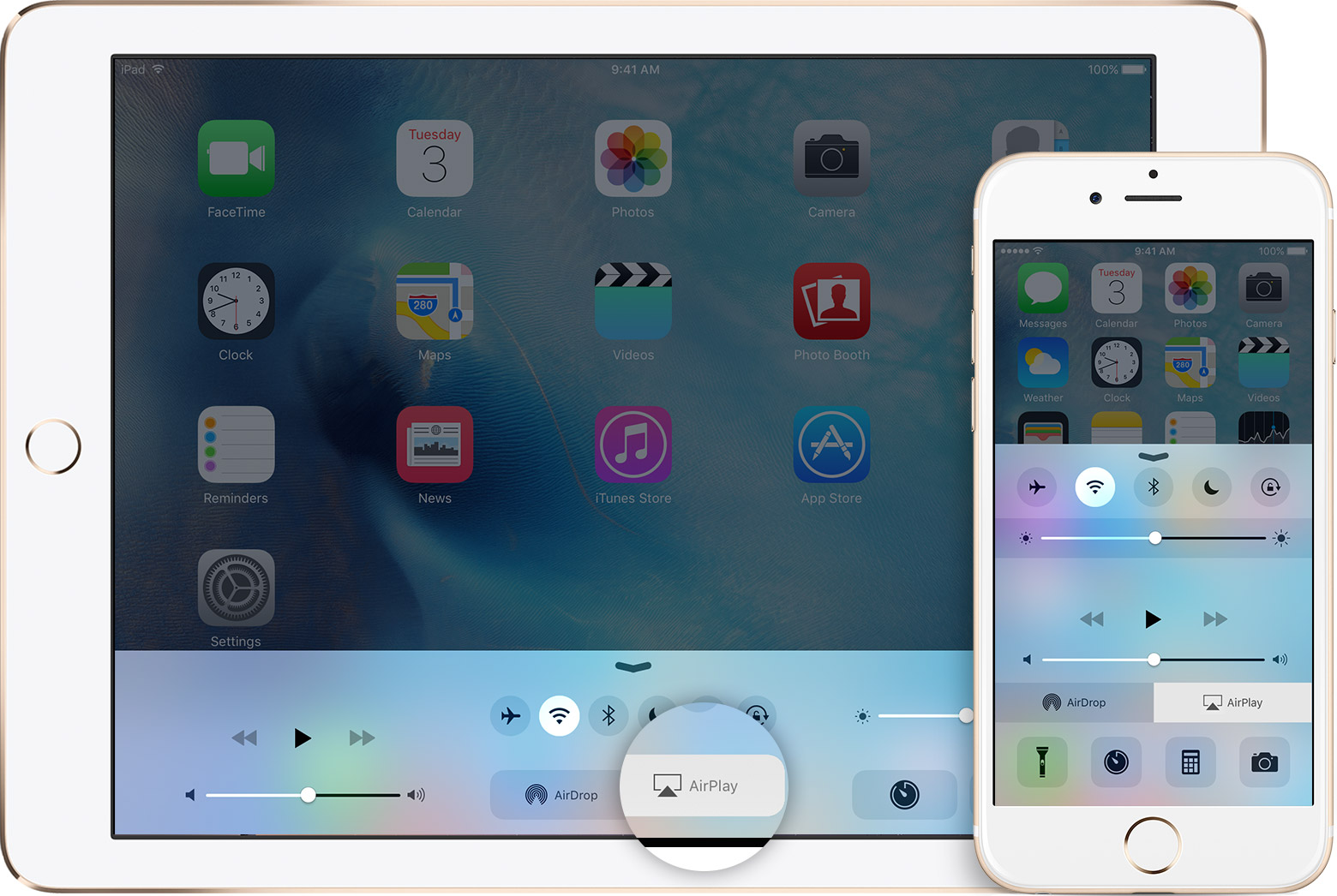
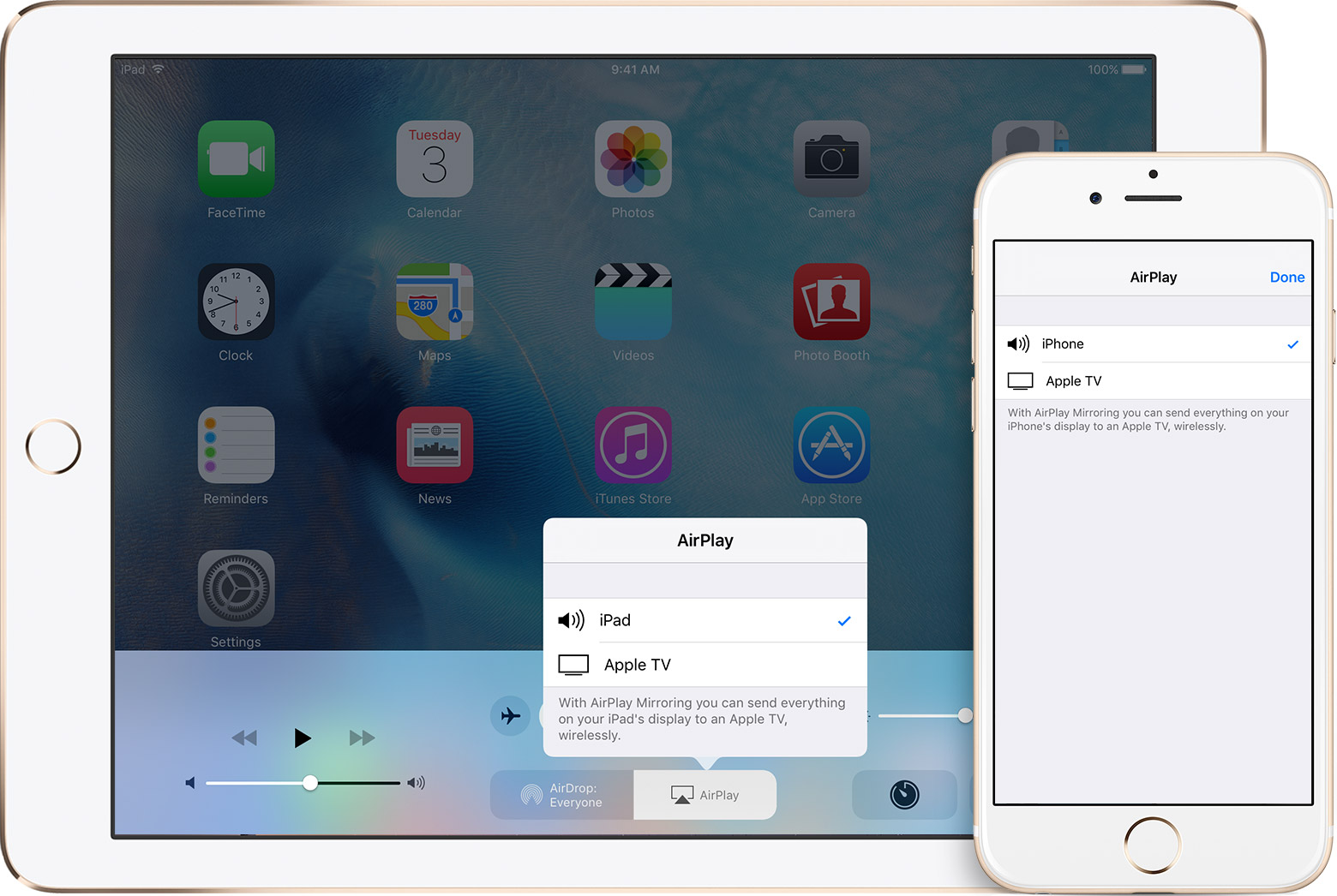
On your iOS device, swipe up from the bottom of your screen
to open Control Center.
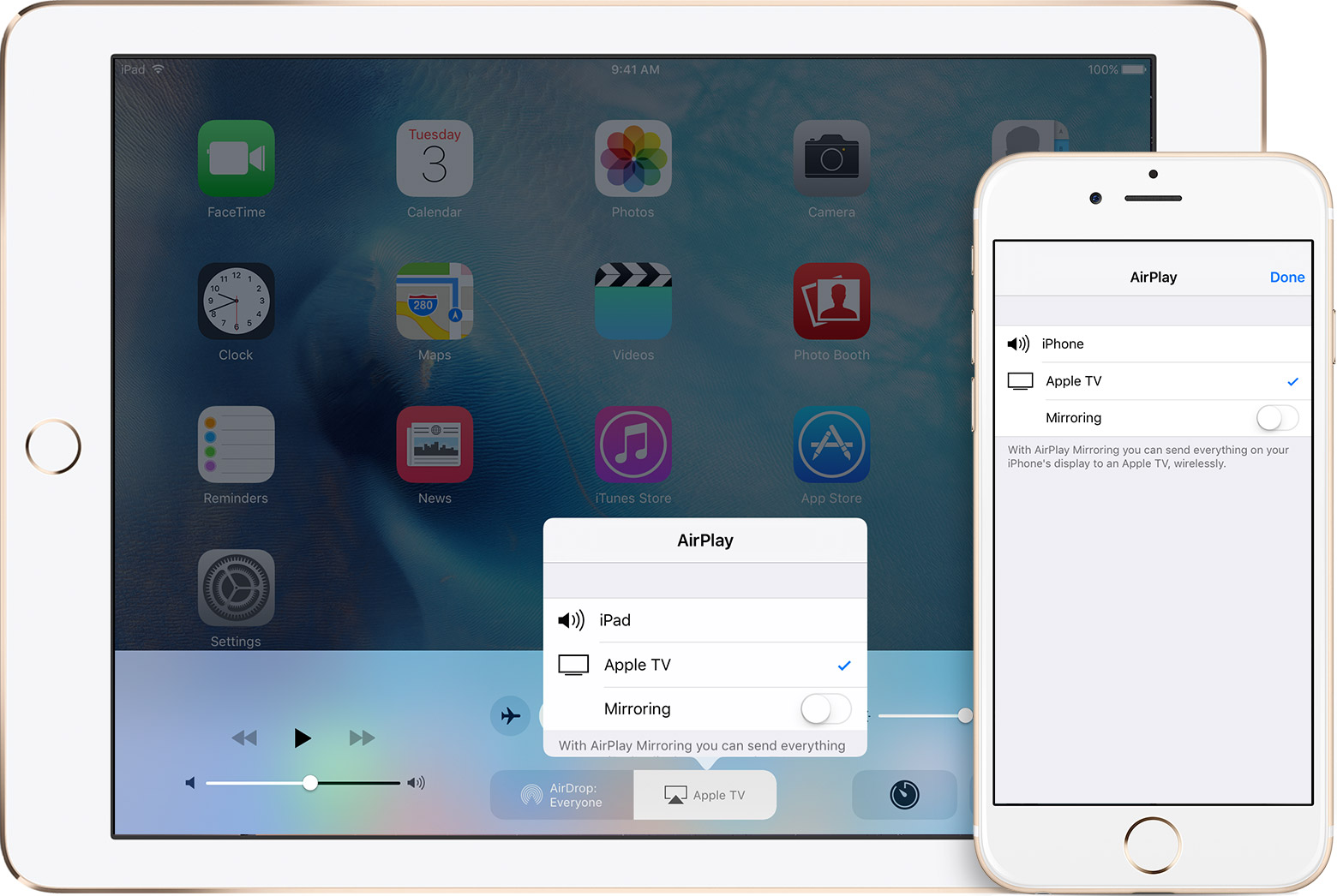
Tap AirPlay.

Tap the name of the device you want to stream content to.
You'll see
(TV) or
(speaker) next to each device, so you know what
type of content you can stream. On iPad, you might need to scroll to see
all of the available devices. Don't
see your device in the list?

When you choose an AirPlay device, audio or video from your
iOS device will play on your AirPlay-enabled speakers or on the TV that's
connected to your Apple TV.
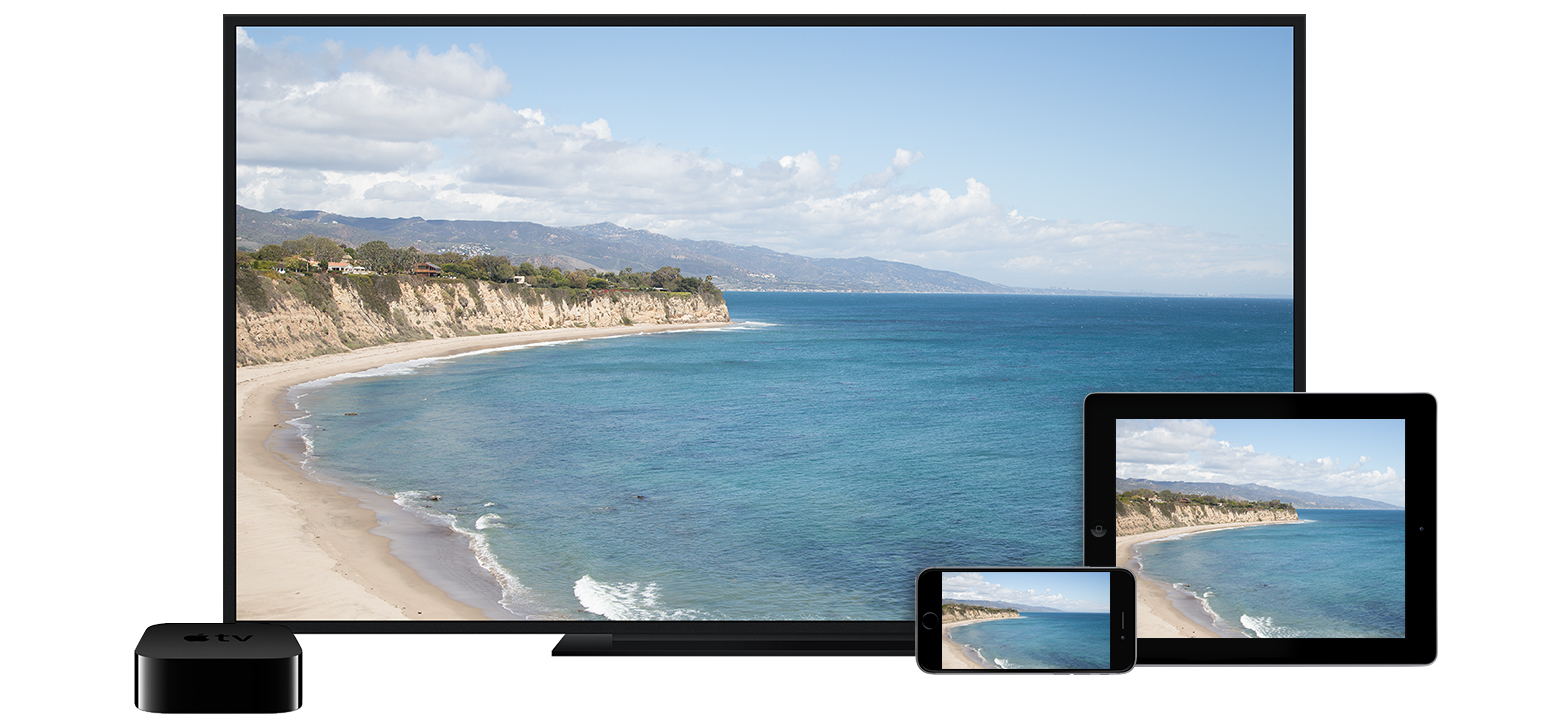
If you turn on Mirroring, you'll see your entire iOS screen
on the TV that's connected to your Apple TV. Your TV will use the orientation
and aspect ratio of your device. If you want the image from your device to fill
your TV screen, you might need to adjust your TV's aspect ratio or zoom
settings.
Turn AirPlay off
On your iOS device, swipe up from the bottom of your screen
to open Control Center.
Tap AirPlay.
Tap your device at the top of the AirPlay list.

Use peer-to-peer AirPlay
With peer-to-peer AirPlay, your iOS device and Apple TV
don't have to be on the same Wi-Fi network. To use peer-to-peer AirPlay, you
need one of these devices with iOS 8 or later:
iPhone 5 or later
iPad mini or iPad (4th generation) or later
iPod touch (5th generation) or later
You can stream content to your Apple TV (3rd generation rev
A, model A1469 or later).
Make sure that both devices have Wi-Fi and Bluetooth turned
on. If you want to stream iTunes Store content, you also need an Internet
connection.
source: https://support.apple.com/en-us/HT204289
http://www.buyetail.com
Subscribe to:
Posts (Atom)